Working with data in Excel often requires presenting complex information in a clear and concise manner. One of the most effective ways to achieve this is by using charts. However, when dealing with large datasets or multiple variables, a single chart may not be sufficient. This is where presenting multiple charts on a single Excel worksheet comes into play, offering a powerful tool for data analysis and visualization.
The ability to display multiple charts on one worksheet allows users to compare different sets of data side by side, identify trends, and make informed decisions based on the insights gained. Whether you’re analyzing sales trends, website traffic, or scientific data, the flexibility and clarity provided by multiple charts can significantly enhance your understanding and presentation of the data.
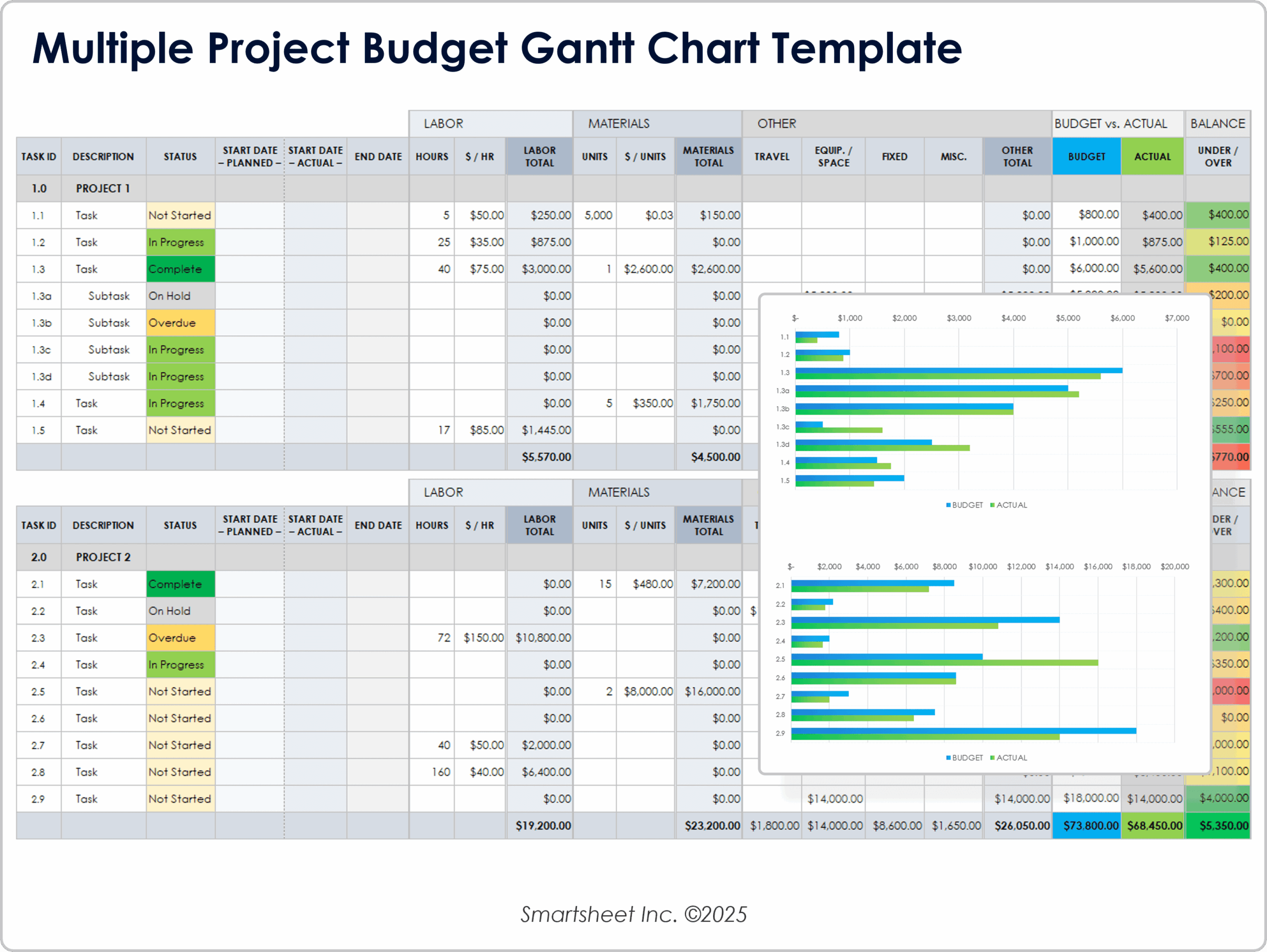
Free Gantt Chart Templates For Multiple Projects
Benefits of Using Multiple Charts
Using multiple charts on a single worksheet offers several benefits, including enhanced data comparison, improved trend identification, and better decision-making. By placing relevant charts next to each other, users can easily compare different data points, notice patterns that might be obscured in a single chart, and communicate findings more effectively to their audience. This approach also saves space and makes the worksheet more organized, as all relevant information is contained within one view.
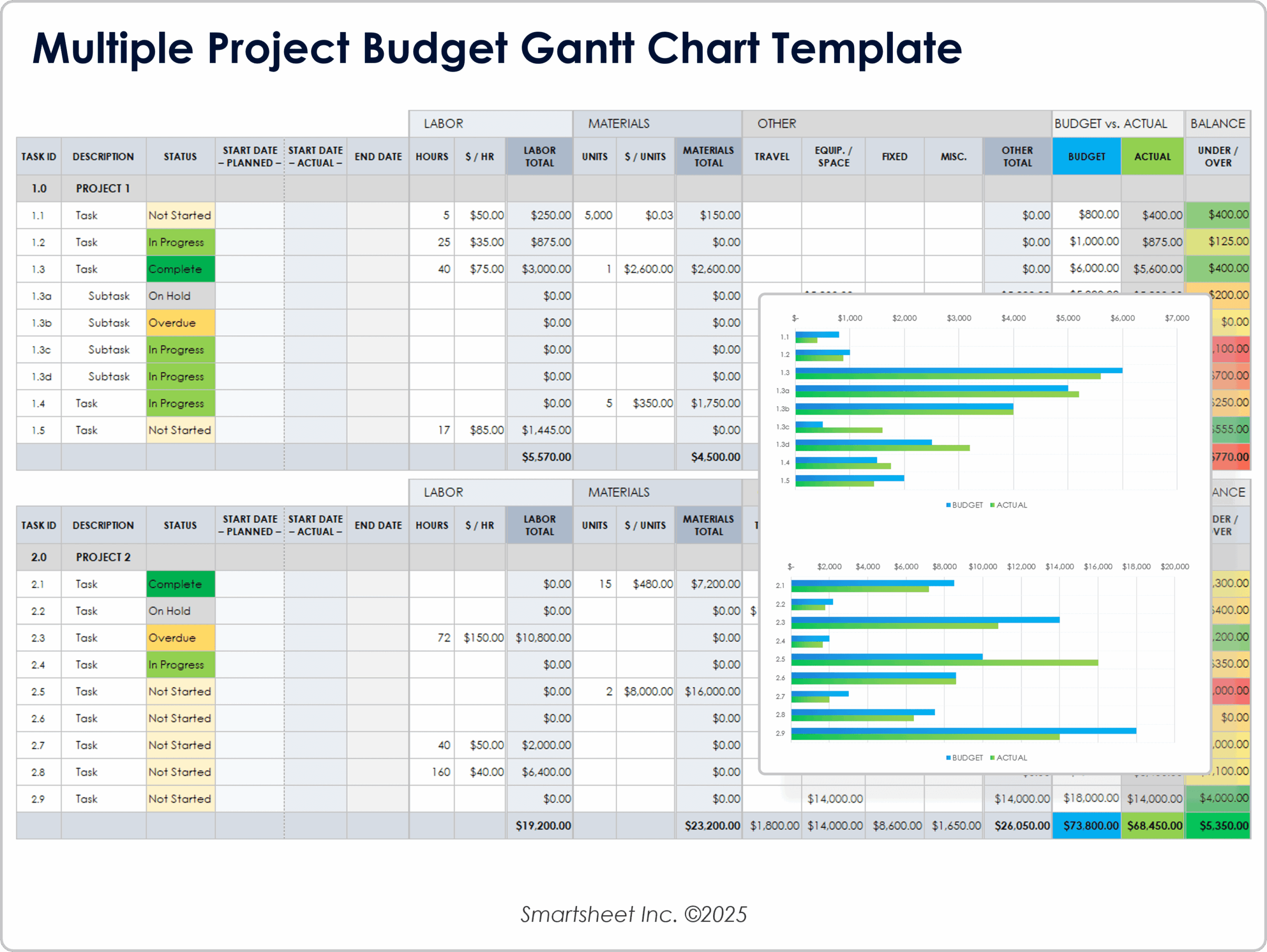
Free Gantt Chart Templates For Multiple Projects
Step-by-Step Guide to Adding Multiple Charts
To add multiple charts to an Excel worksheet, start by selecting the data you want to chart. Then, go to the ‘Insert’ tab and choose the appropriate chart type. Excel allows you to add multiple charts to a worksheet by simply repeating the process for each set of data you wish to visualize. You can then adjust the size and position of each chart by dragging the corners or edges. For more complex comparisons, consider using the ‘Recommended Charts’ feature, which can suggest the best chart types based on your data.
Customizing and Formatting Your Charts
Customizing and formatting your charts is crucial for effective data presentation. Excel provides a wide range of tools and options to personalize your charts, from changing colors and fonts to adding titles and legends. You can also use the ‘Chart Tools’ tab that appears when you select a chart, offering options to modify the chart’s layout, add trendlines, or change the chart type altogether. Additionally, consider using Excel’s built-in themes to ensure your charts have a consistent and professional look.
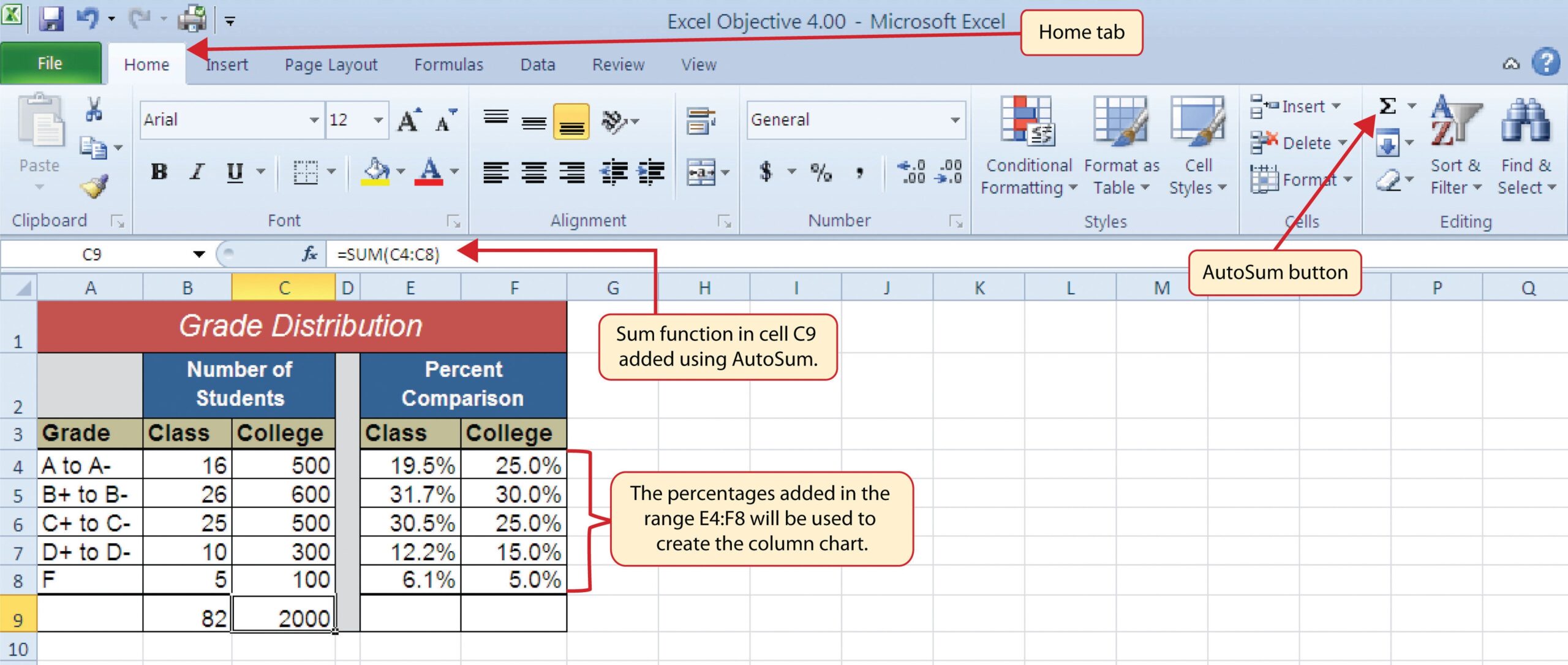
Presenting Data With Charts
In conclusion, presenting multiple charts on a single Excel worksheet is a powerful technique for enhancing data analysis and presentation. By leveraging the benefits of multiple charts, following a step-by-step guide to add them to your worksheet, and customizing their appearance, you can create compelling and informative worksheets that support better decision-making and communication of complex data insights.
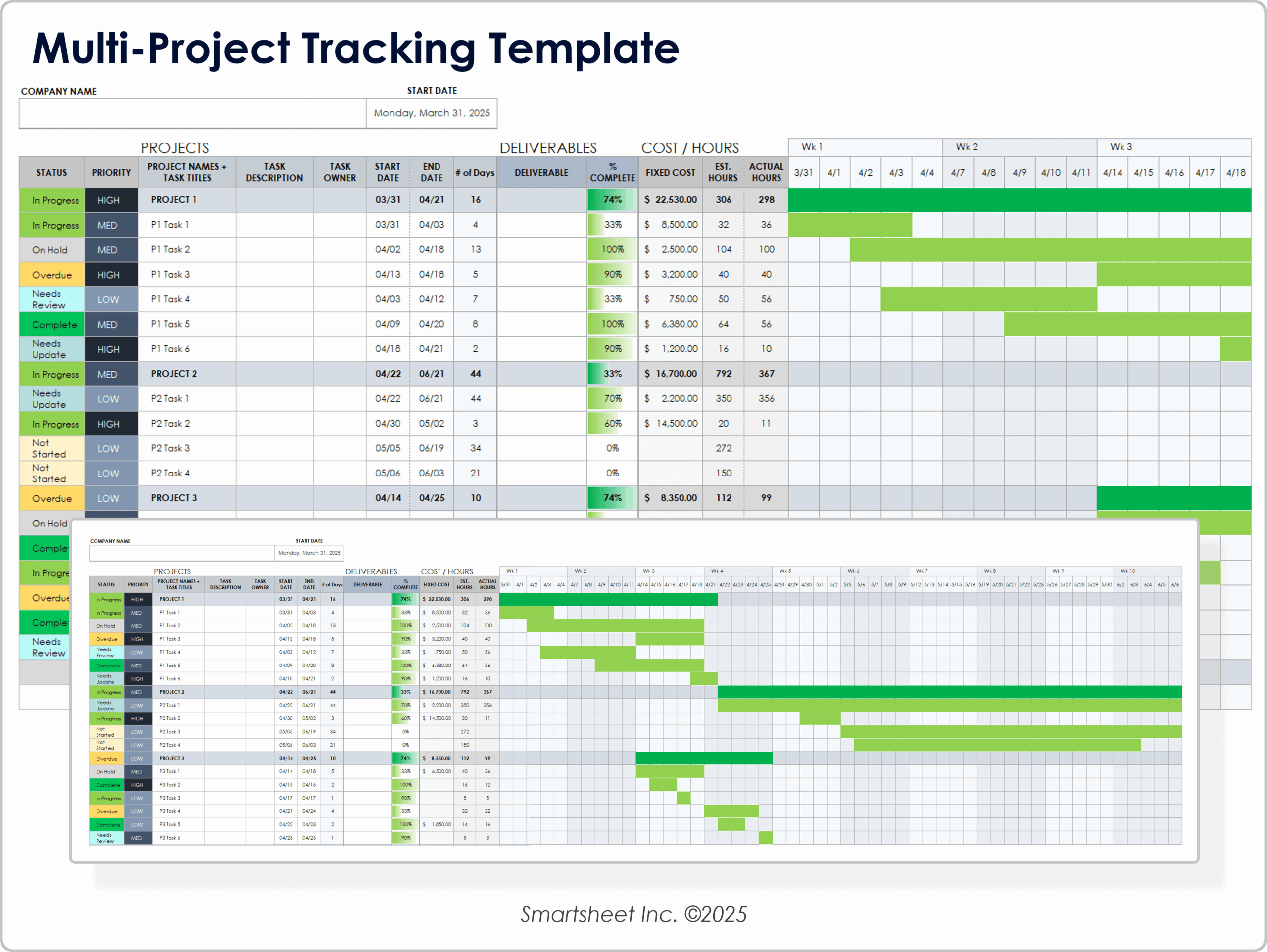
Free Gantt Chart Templates For Multiple Projects
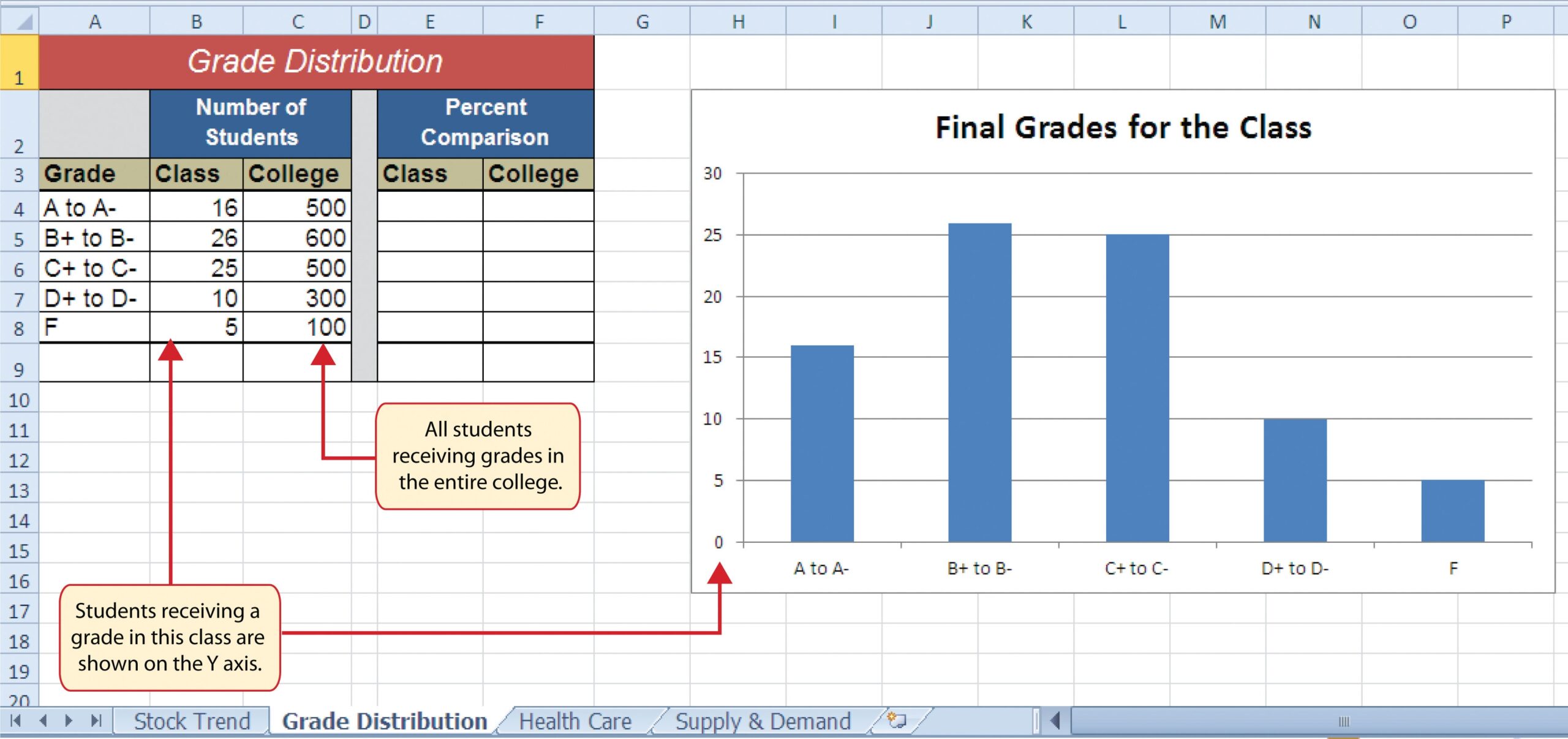
Presenting Data With Charts